In my years working in SEO, one of the investments with the clearest, most sustained payoff has been adding a NAS to my toolset.
It’s far more than a hard drive for storing files. A Synology (or equivalent) is, in practice, a low-power server that works for you around the clock, letting you run your own rank tracker, leave Screaming Frog crawling for hours without locking up your machine, or monitor changes to web pages, sitemaps, and robots.txt files.
Are you an SEO who’s ever thought about buying a NAS? Below I lay out how I fold it into my workflow. Maybe it gives you a few ideas.
This is my NAS and I’m thrilled with it, but do your own research and find the one that best fits your situation:

Synology DS1522+ NAS 5 EMP. 2.6/3.1GHz DualCore 8GB 4 LAN GbE USB3.2 eSATA 2emp M.2 NVMe
See the deal on AmazonThese are the drives I use: Seagate IronWolf Pro 24TB, NAS Internal Hard Drive, 3.5 Inch, 7200 RPM, CMR, 256 MB Cache, SATA 6 GB/s, and this is the RAM I upgraded it with (all links are affiliate links; if you buy through them I earn a small commission): Timetec DDR4-2666 – D4ECSO-2666-16G DDR4 ECC unbuffered SODIMM
The basics for day-to-day work
The use cases that follow are basic setups, but extremely useful.
Private cloud and remote access (Synology Drive)
Leaning on third-party services like Google Drive or Dropbox gets expensive fast. By deploying Synology Drive, I build a private cloud whose only limit is the physical capacity of the drives I’ve installed. That kills the monthly fees and gives me full control over the data.
From a security and compliance angle, keeping the data on my own infrastructure makes it far simpler to honor strict NDAs. The data doesn’t sit on some unknown third-party server; it lives in a physical location I control, encrypted.
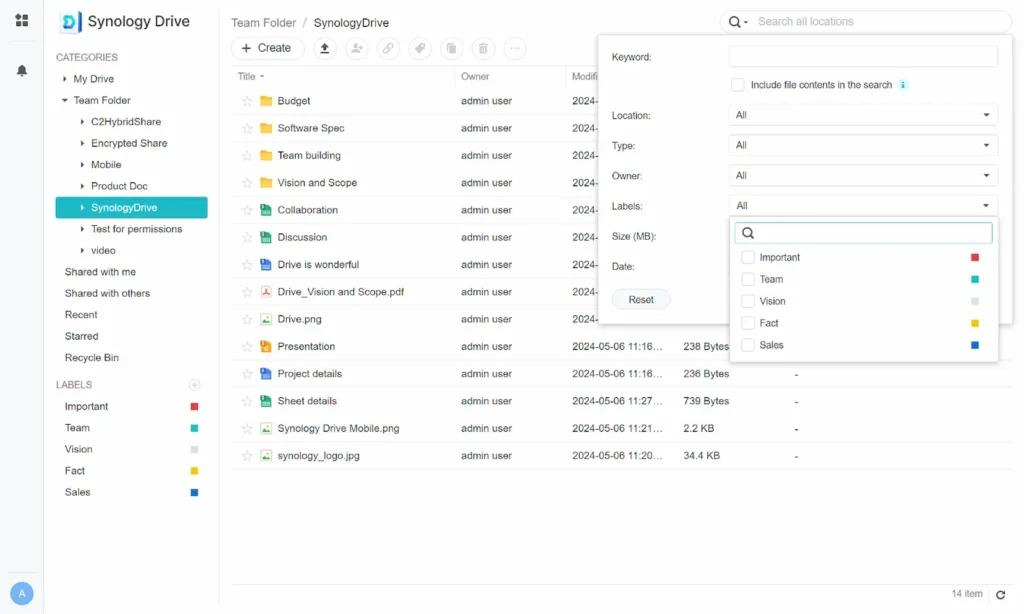
Synology Drive is one of the apps that ships with the NAS. It works exactly like the folders on your computer: you install a lightweight client on your Mac or PC, and it creates a local folder that syncs both ways with the server in real time. No steep learning curve, no strange interfaces; if you know how to use Windows Explorer or macOS Finder, you already know how to use Synology Drive. Its mobile app also lets you pull up any urgent document from your phone, closing the loop on total accessibility.
Handling large files
Some of the files an SEO works with can run to tens of gigabytes:
- Heavy files generated in audits of large sites: logs, crawls, database dumps…
- Staging versions
- Explainer videos and documentation
The NAS acts as a centralized repository I can reach at any time, at home or away. I can work with those files without downloading them locally, and I can share them with outside collaborators safely.
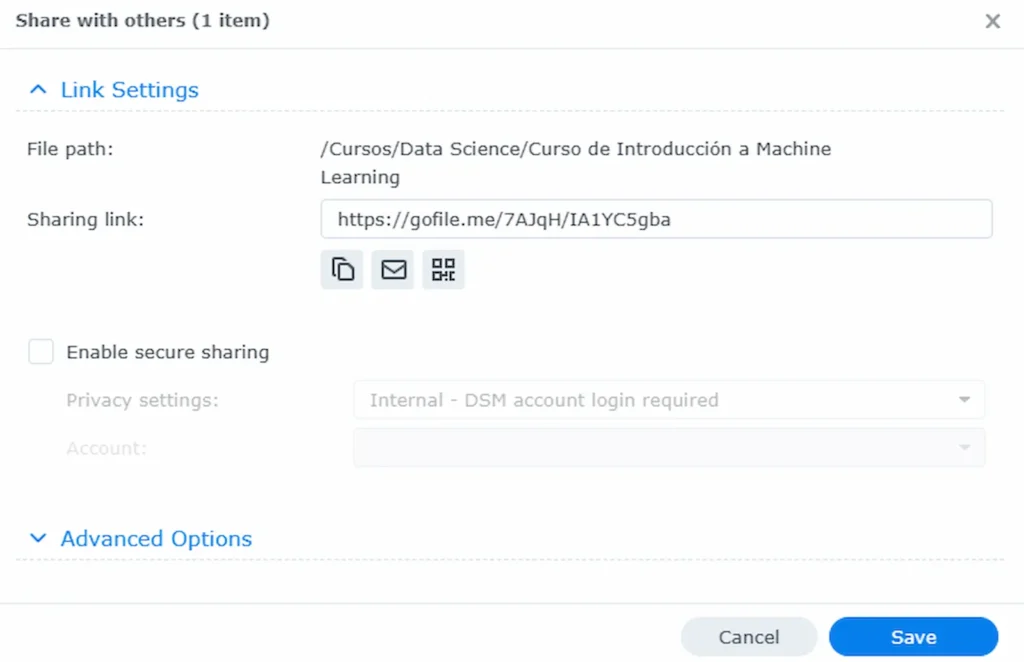
For smooth access to your NAS, I’d recommend a fiber connection with at least 500 Mbps upload, though more is always better. I’m on symmetric 1 Gbps and it flies.
Backing up the main machine and your projects
The 3-2-1 backup rule is non-negotiable in a professional setup:
Three copies of your data, on two different media, with one of them off-site.
The NAS is the central node of this strategy:
- My Mac runs its Time Machine backup to it, wherever I am.
- I periodically push the contents of my external drives to it as well.
- My projects folder syncs to the NAS and I can reach it from different machines and mobile devices.
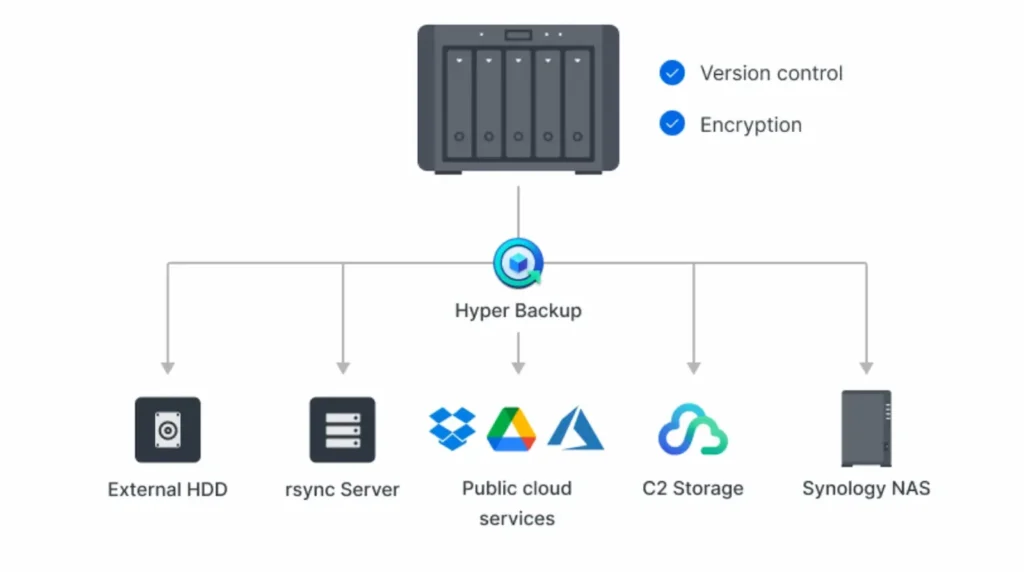
The NAS, in turn, uses Hyper Backup to send a copy of the most important data to a high-capacity, low-cost external cloud: Amazon S3 Glacier Deep Archive, where a terabyte costs me less than a dollar a month. That’s how I satisfy the 3-2-1 rule.
Ransomware protection: Snapshot Replication
Ransomware is every company’s worst nightmare, and it’s yours too if a big chunk of your assets are your files.
The Btrfs file system (used in many modern NAS units) lets you take immutable snapshots. On Synology, the app that makes this easy is Snapshot Replication.
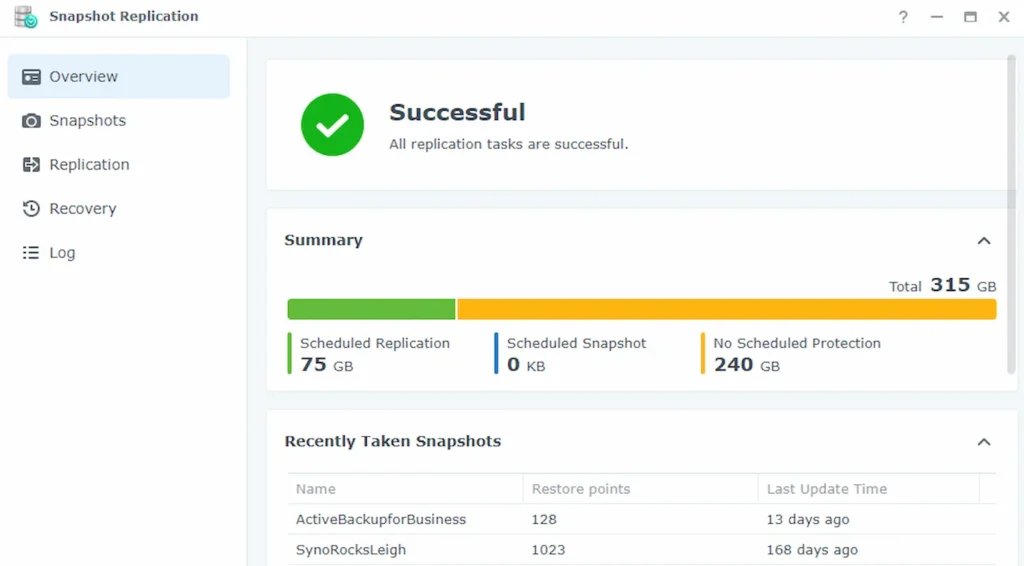
These snapshots are restore points that ransomware can’t tamper with. If a machine gets infected and encrypts the files on the network, you can roll the NAS back to an earlier state in minutes, keeping the business running.
Gitea: my own code repository
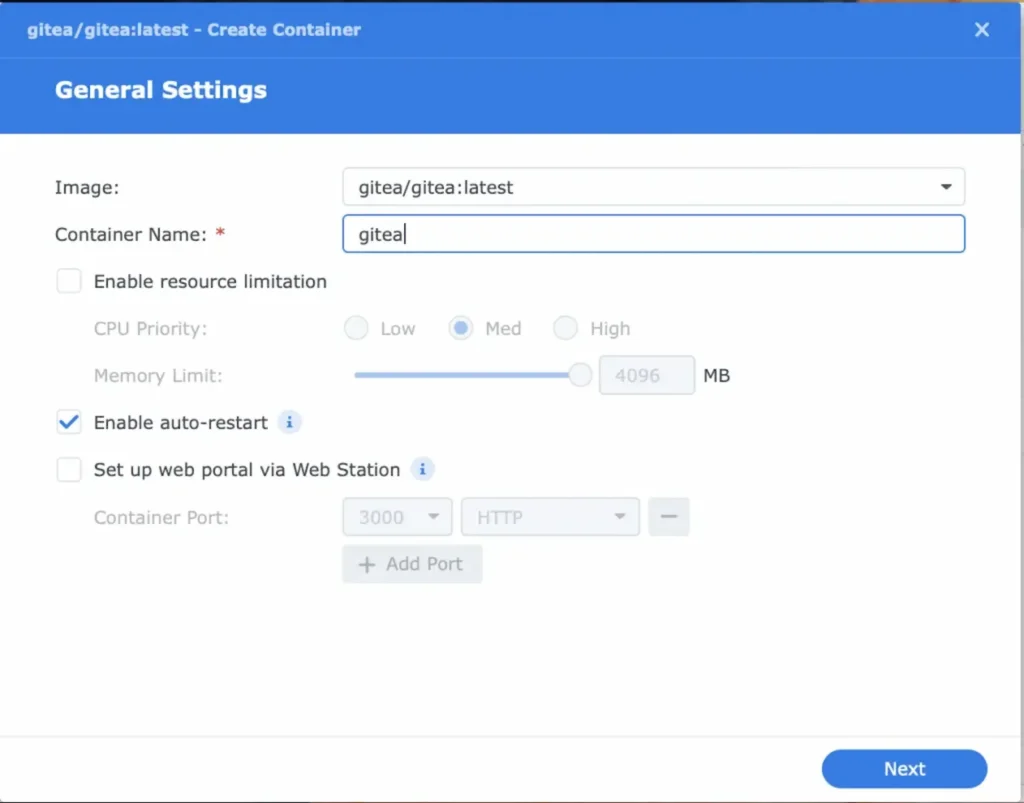
For code, instead of relying solely on private repos on GitHub or GitLab, I’ve deployed a Gitea instance via Docker. This lightweight solution lets me host my own Git repositories with a full web interface.
This is where I keep Python scripts, server configs, and custom builds for certain projects. Keeping the code on my own infrastructure protects the intellectual property and rules out interruptions if an external platform goes down or changes its terms of use.
Advanced automation and data
At this level the NAS stops being a mere storage box and becomes an application server. The ability to run Docker containers and scheduled scripts turns the device into an autonomous worker that runs 24/7.
The NAS as a staging environment
Web performance optimization (WPO) needs a safe place to experiment before you push changes to production. Staging is also handy when, on top of SEO, you handle CMS maintenance and want to test updates before they go live.
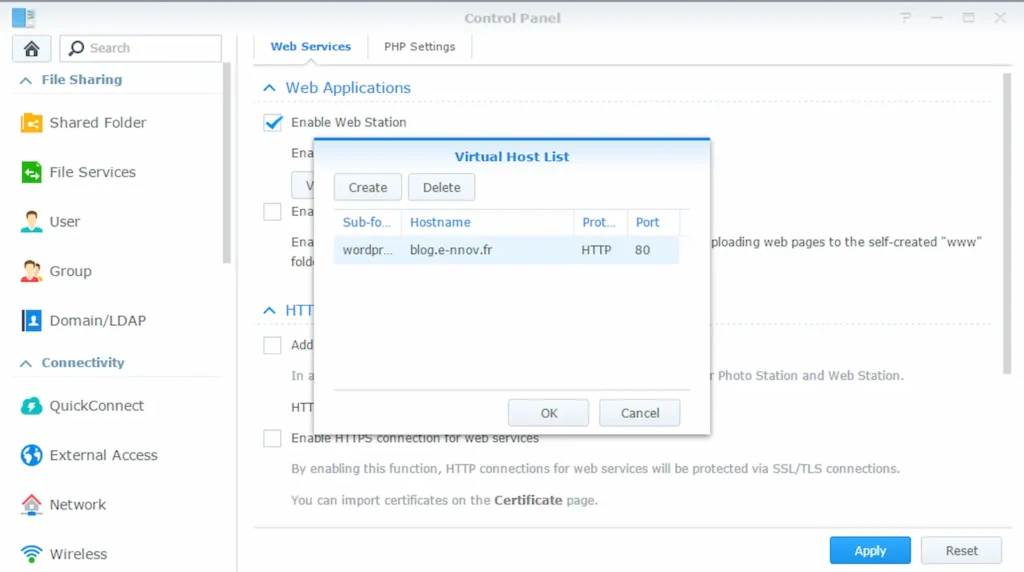
Using Docker on the NAS, I replicate the client server’s exact architecture (specific versions of PHP, MySQL, Apache/Nginx) in isolated containers. That lets me run load tests, script minification, or image conversion to next-gen formats (AVIF/WebP) without risking the live site or affecting real users during the process.
Synology’s higher-end NAS units, like the DS1522+, make it easy to spin up a web server by installing the Web Station package.
Screaming Frog via CLI (headless)
Crawling large sites eats a massive amount of RAM and processor time, leaving your main machine unusable for hours or days. The fix is to install Screaming Frog SEO Spider on the NAS (either in a Docker container with a browser-based GUI or natively on Linux) and run it headless through the command line (CLI).
This setup lets you schedule recurring crawls through the system’s task scheduler (cron). For example, you can run a weekly audit of your key sites every Sunday night. The NAS handles the crawl with its own hardware, never getting in the way of your daily work.
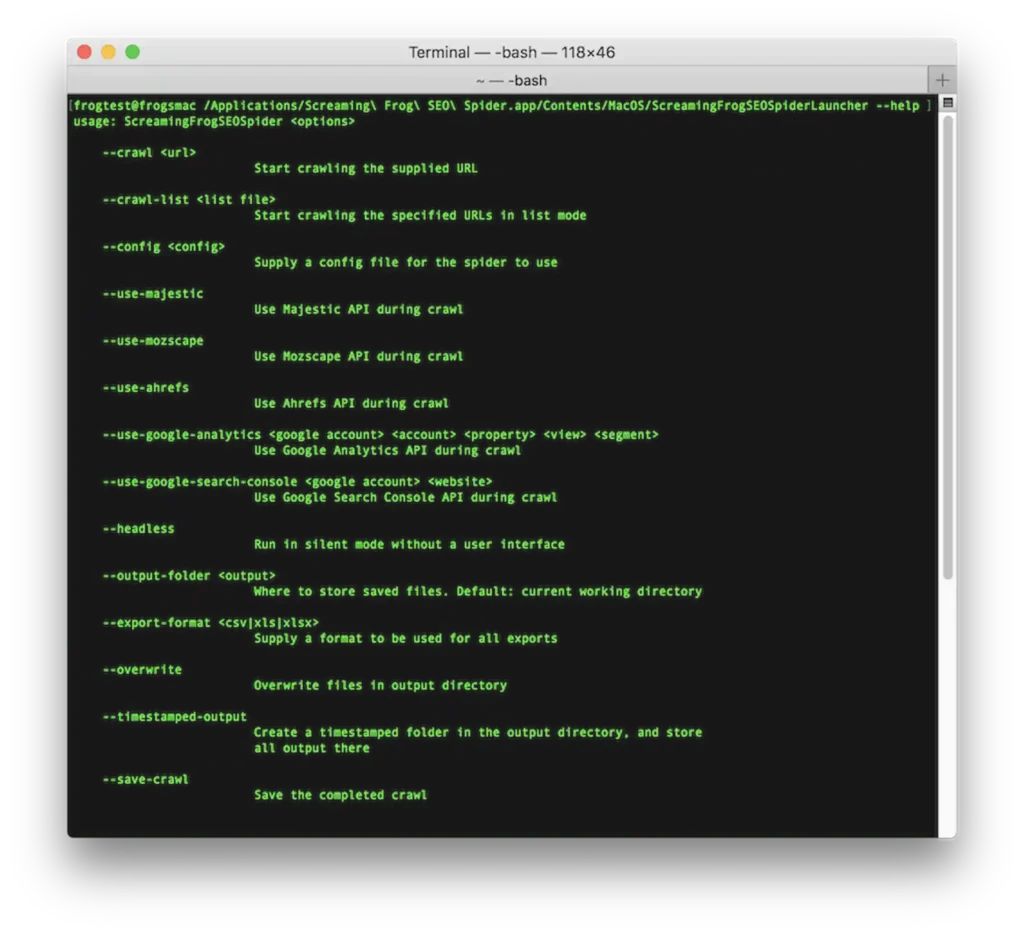
When the crawl finishes, you can set the system to automatically save the reports and exports (404 errors, redirect chains, missing meta tags) to a shared folder or push them to a database. That way, when the work week starts, the fresh data is already there for immediate analysis.
Python automation scripts
The Python ecosystem is fundamental to modern technical SEO, but running scripts locally has limits: it needs your computer to be on and connected. By moving those scripts to the NAS, they run in a controlled, always-available environment. You can set up specific virtual environments (virtualenvs) per project, managing dependencies without conflicts.
The use cases vary: from scraping scripts that watch for new competitors appearing, to bots that check the indexation of specific URLs using Google’s API. I also use libraries like Selenium or Playwright to run periodic JavaScript-rendering audits, catching problems that only show up in the user’s browser and not in the static source code.
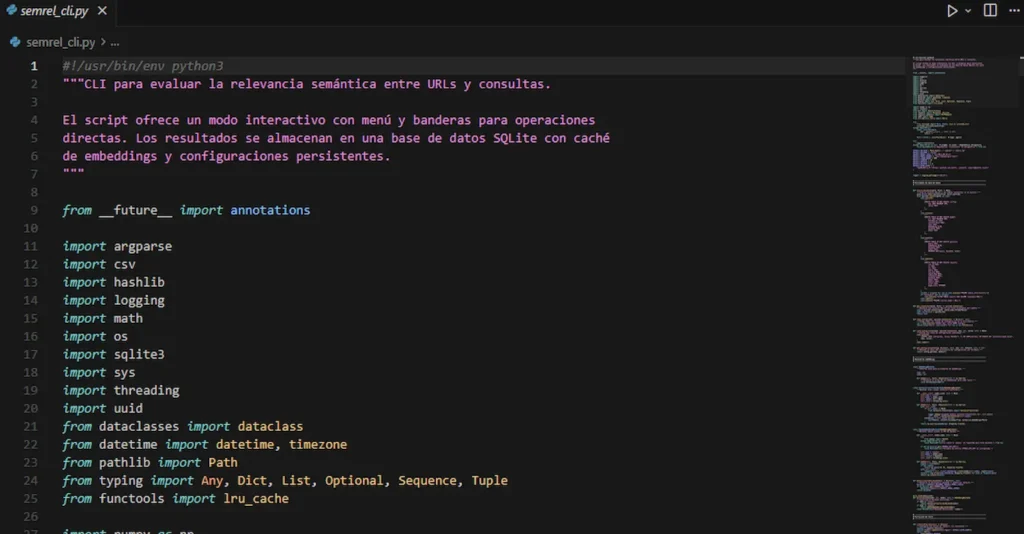
Reliability is the main benefit. A script hosted on the NAS runs on schedule, on time, whether I’m traveling, offline, or have the laptop shut. The results of those runs (logs, CSV files, alerts) get saved centrally or sent to messaging systems like Slack or NTFY (the latter is my favorite) for immediate notification.
Storing raw data (GSC and GA4) in Postgres
Google’s tools, Search Console (GSC) and Analytics 4 (GA4), come with real limits: GSC only keeps 16 months of data and its web interface caps exports (1,000 rows); GA4 applies sampling to large reports and has its own retention limits. To get past this, I use the NAS to host a PostgreSQL database and scripts that query these services’ APIs daily.
Every day, an automated process downloads the “raw” performance, query, and traffic data and stores it in my own database. Over time, this builds a historical record of my own that blows past Google’s limits, enabling long-term trend analysis (year over year) with no data loss.
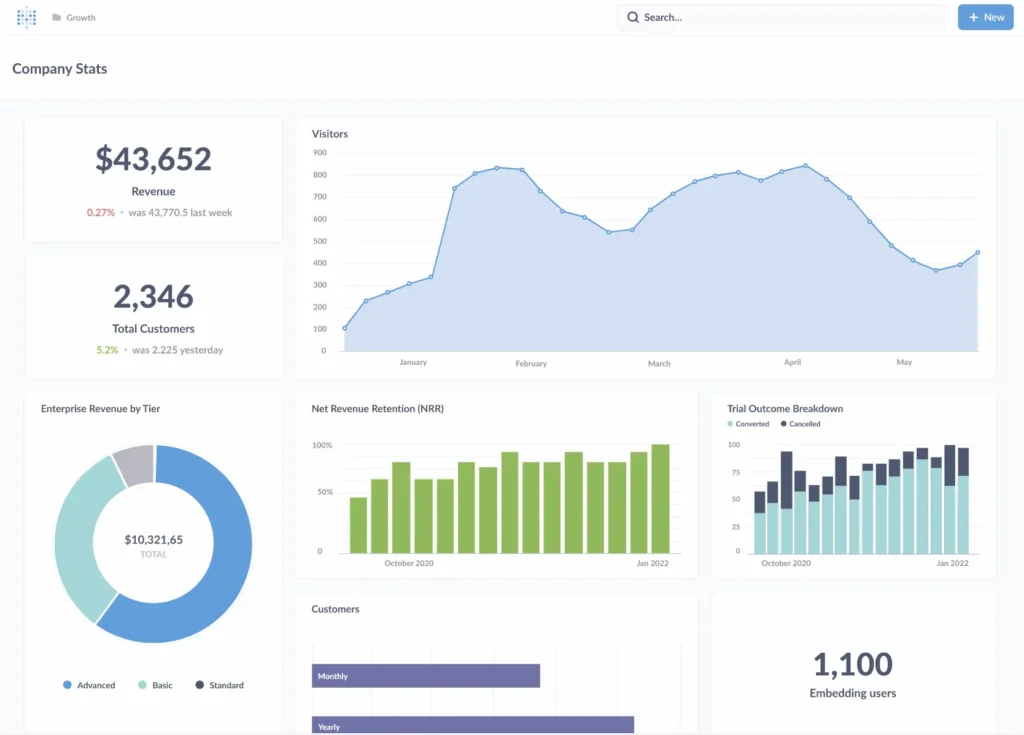
Having the data in SQL lets me run complex queries the native interfaces won’t allow, like crossing crawl data (Screaming Frog) with traffic data (GA4) and impression data (GSC). It also makes it easy to plug into data-visualization tools like Power BI or Metabase (also hosted on the NAS) to build custom dashboards without paying for connectors.
n8n: orchestrating workflows
n8n is a node-based workflow automation tool, similar to Zapier or Make, but open source and self-hostable. By installing n8n on the NAS via Docker, I cut out the per-“execution” or per-“zap” cost, which lets me build complex, high-volume automations without worrying about the monthly bill.
I use n8n to connect disparate tools that have no native integration. For example, I can build a flow that receives a server-down alert (uptime monitor), checks the HTTP status code, and fires an urgent message to an NTFY topic. Another common use is processing leads from a web form, validating them against an external API, and saving them straight to a spreadsheet or local database.
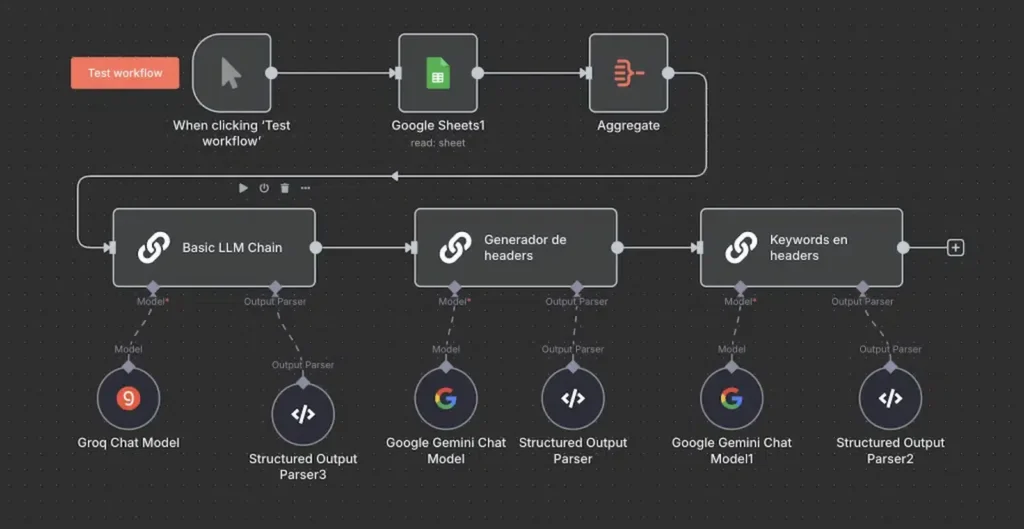
Privacy is a key factor here too. By processing client data, like email lists or contact details, through n8n on my own server, I make sure that information never passes through some third-party automation company’s servers, shrinking the data exposure surface and making it easier to comply with data-protection rules.
SerpBear: rank tracking
Keyword rank tracking is a steep recurring cost for any agency or consultant, especially as projects scale. SerpBear is an open source solution I deploy on the NAS. It lets me track an unlimited number of keywords and domains, giving me position data, search volume, and SERP changes.
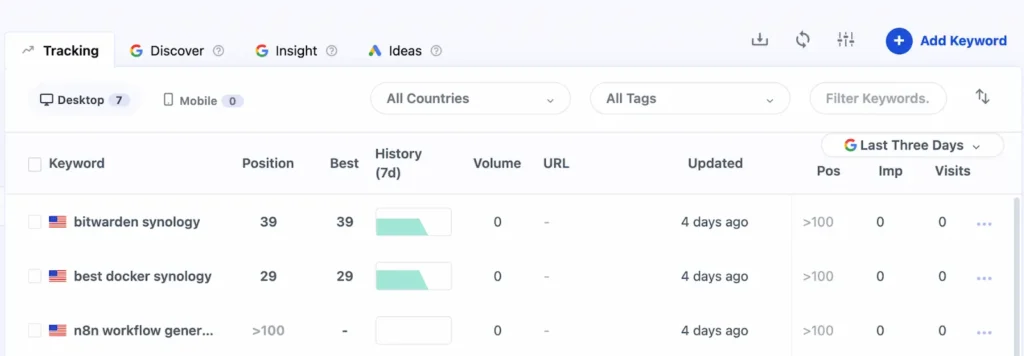
To pull the data, SerpBear connects to low-cost data providers or uses your own proxies, which slashes the cost per keyword versus traditional SaaS tools. The setup lets you tune the crawl frequency and device (mobile or desktop) to the project’s needs, with no plan restrictions.
On top of the savings, SerpBear offers an API and webhooks. That lets me feed ranking data straight into my automated reports or internal dashboards, keeping full ownership of my clients’ historical ranking data.
Changedetection.io
Technical SEO calls for constant watch over unauthorized or accidental changes. Changedetection.io is a tool that monitors specific URLs and alerts you to visual or source-code changes. Deployed on the NAS, it works quietly, checking your projects’ sites or the competition’s.
For the competition, I use it to catch changes in their pricing, edits to business pages, robots.txt, and sitemaps. That gives me real-time competitive intelligence and lets me react to direct rivals’ on-page SEO moves.
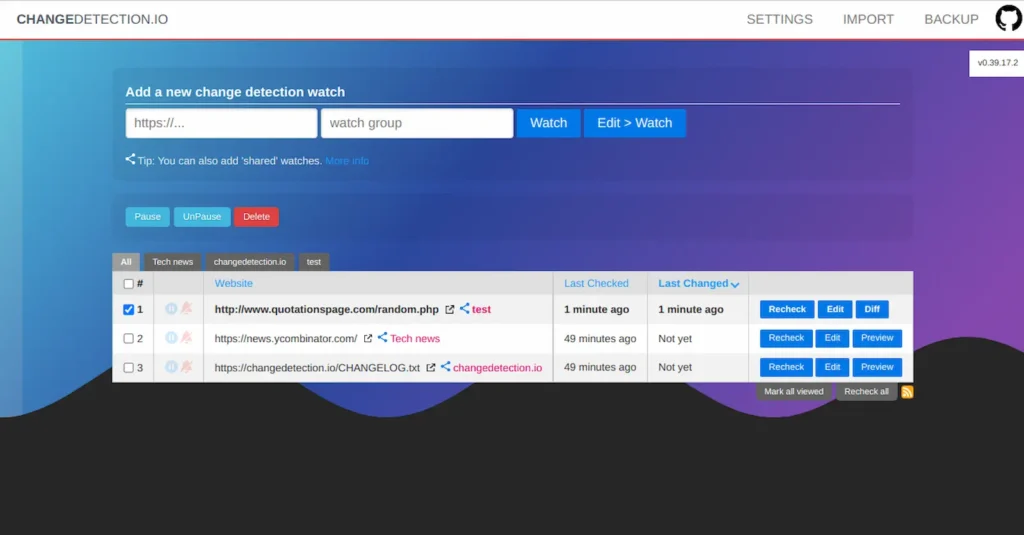
On my own project sites, it’s an early-warning system. If a collaborator or developer accidentally adds a noindex tag, deletes an important block of SEO text, or changes the heading structure, the system notifies me right away. That lets me fix critical technical errors before Google re-crawls the page and it hits the rankings.
ArchiveBox
The internet is ephemeral; content changes or disappears. ArchiveBox is a personal web-archiving tool that creates local, static, browsable copies of websites. I mostly use it to snapshot competitors’ homepages and critical articles, though there are plenty of other practical use cases.
It’s also handy for link building audits, for instance. I save a copy of the page where an outlet has published a link to my project. If that outlet later changes the content or takes the page down, I have an unalterable forensic record of the original state. Unlike the Wayback Machine, this archive is private, under my control, and I can force a capture at the exact moment I want.
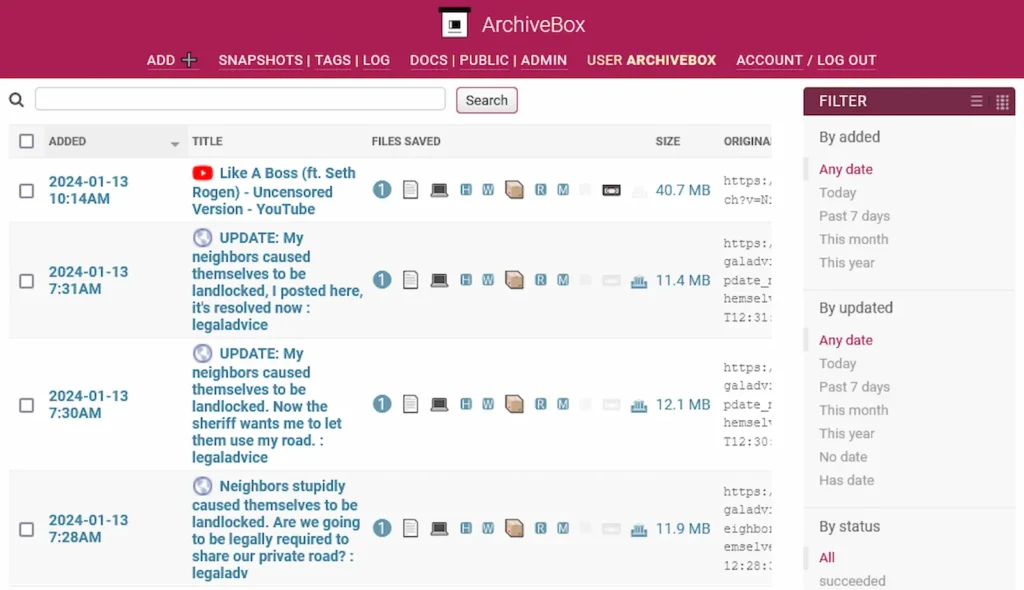
ArchiveBox saves multiple formats: screenshot, PDF, plain HTML, and WARC. That ensures I have a faithful representation of the content for future reference or visual comparison, no matter what technology the site uses (even complex SPAs).
Mautic for digital PR
Mautic is a powerful open source marketing-automation tool. In my case I don’t use it for mass sales, but as a specialized CRM for digital PR and link building. I set up campaigns to manage relationships with journalists, editors, and bloggers, segmenting contacts by topic or by the outlet’s authority.
The system lets me track interactions precisely: I know when a journalist has opened my pitch or clicked the link to the press release. That information is vital for gauging interest and timing the follow-up calls, improving the success rate when landing links and mentions.
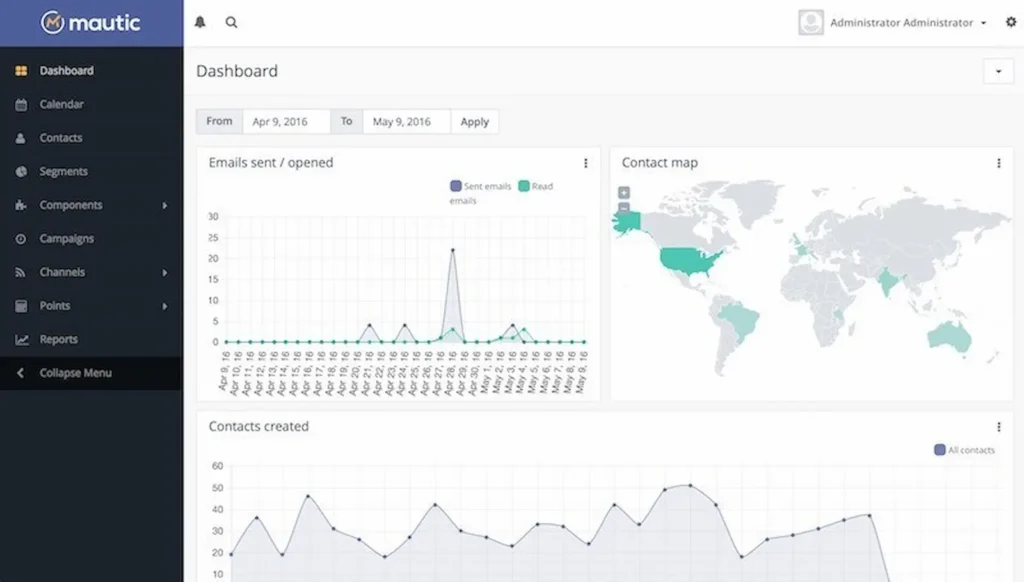
By hosting Mautic on the NAS, I avoid the prohibitive costs of tools like HubSpot or Salesforce for a contact database that can grow large. I keep ownership of the PR database, one of the most valuable assets an off-page SEO consultant has.
SEO uses for a Synology DS1522+ NAS, at a glance
| Tool / use | Main function | SEO / business benefit | Technical level |
|---|---|---|---|
| Synology Drive | Private cloud | Data sovereignty, savings on SaaS, no size limits. | Low |
| File handling | Log/SQL storage | Big-data processing without bogging down the local PC. | Low |
| Backup / Gitea | Security and code | Ransomware protection and privacy for your own scripts. | Medium |
| WPO staging | Docker test environment | Safe load and cache optimization with no risk to production. | High |
| Screaming Frog CLI | Headless web crawling | Massive crawls without tying up your work machine. | Medium |
| Python scripts | Automation | 24/7 scraping, indexation, and API runs. | High |
| Postgres (raw data) | Database | Unlimited history (>16 months) with no sampling. | High |
| n8n | Workflow automation | Connecting tools with no per-execution cost (Zapier-free). | Medium |
| SerpBear | Rank tracking | Unlimited keyword monitoring at marginal cost. | Medium |
| Changedetection.io | Change monitoring | Early alerts on competitor changes or client-site errors. | Low |
| ArchiveBox | Web archiving | Forensic evidence of SERPs and links. | Medium |
| Mautic | CRM for PR | Efficient outreach and media-relationship management. | High |
I hope this has sparked some SEOs’ interest in what a NAS can do for their work. If you have one, I’d love to hear how you use it; the comment box is open.
Frequently asked questions
Is a NAS worth it for SEO?
If you crawl large sites, run scripts on a schedule, or pay for several SaaS tools (rank tracking, cloud storage, automation), a NAS pays for itself fast. It’s a low-power server that runs 24/7, so you stop renting per-execution and per-keyword pricing and stop tying up your main machine on heavy jobs.
Which NAS do you recommend for SEO?
I use a Synology DS1522+ with 8GB of RAM (upgradeable) and IronWolf Pro drives, and it handles everything I throw at it. The exact model matters less than having room to add RAM and the ability to run Docker, since most of the SEO tools here (SerpBear, n8n, Changedetection.io, ArchiveBox) run in containers.
Can I run Screaming Frog on a NAS?
Yes. You install Screaming Frog SEO Spider on the NAS, either in a Docker container with a browser GUI or natively on Linux, and run it headless from the command line. From there you can schedule recurring crawls with cron, so the NAS uses its own hardware and your work machine stays free.
How much internet speed do I need to use a NAS remotely?
For smooth remote access I’d aim for fiber with at least 500 Mbps upload. The upload number is what counts, since that’s what you use to reach your files from outside. I run symmetric 1 Gbps and access is seamless.
Does a NAS replace cloud storage like Google Drive or Dropbox?
Largely, yes. Synology Drive gives you a private cloud whose only limit is your installed disk capacity, with bidirectional sync and a mobile app, so it works just like Drive or Dropbox but with no monthly fees and full control of the data. I still pair it with a cheap external cloud (S3 Glacier Deep Archive) for off-site backup, to keep the 3-2-1 rule.
Is a NAS secure against ransomware?
A NAS with the Btrfs file system can take immutable snapshots (on Synology, via the Snapshot Replication app) that ransomware can’t alter. If a machine on the network gets encrypted, you roll the NAS back to an earlier state in minutes. Combine that with off-site backup and you have a serious safety net.
Learn to get the most out of your NAS